
A common mistake when choosing an ad blocker is installing whichever app promises to remove every ad. The screenshots look convincing, but they tell you almost nothing about the permissions you will grant or who will handle your DNS requests.
Which ad blockers are safe? Look for one that explains its filtering method, asks for access that matches that method, identifies any outside DNS provider, and lets you switch protection off easily. For iPhone, that may be a Safari content blocker or an encrypted DNS service. On Android, it may be Private DNS or an app that filters DNS requests locally. Start with the ads that actually bother you, then choose the smallest tool that can address them.
An ad blocker that cleans up Safari is not automatically useful in a game. A filter that removes banners from a game may leave sponsored posts in a social feed alone. Those differences are normal, and understanding them helps you avoid granting unnecessary access.
Understanding Mobile Ad Blocker Safety and Privacy Risks
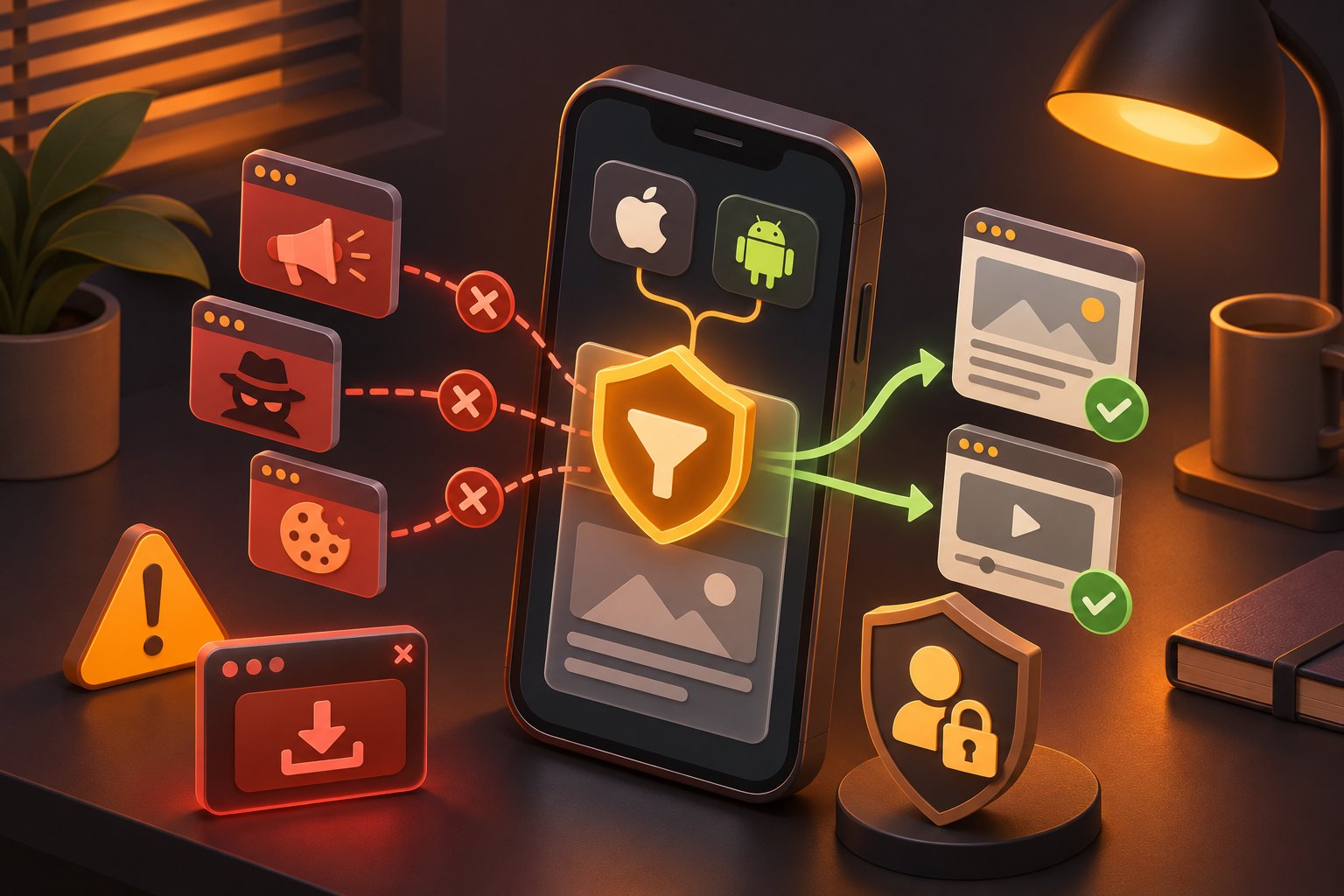
Ad blockers can stop some advertising resources from loading, hide ad spaces on webpages, or both. The phone does not have a single switch that identifies every advertisement in every app. A blocker can act only on the requests or page elements its technology can reach.
That matters when you read an app's safety claims. A Safari blocker should not need your contacts. A DNS filter should be clear about which resolver receives the requests it allows. An Android app asking to create a VPN connection should explain whether it filters traffic on the phone or sends anything through a remote server.
The useful question is not simply, "Does it block ads?" Ask, "What does it have to see to block those ads?" That is the starting point for judging mobile privacy.
How Mobile Ad Blockers Work on iOS and Android
Safari content blocking. Safari can apply a set of content-blocking rules while it loads a webpage. The rules can stop selected network requests and hide page elements, including the empty boxes left by blocked ads. This is useful on long articles where a banner pushes the text down. It does not automatically change what happens inside a separate shopping or gaming app.
DNS filtering. Most apps look up domain names before connecting to online services. A DNS filter checks those names against blocklists of known advertising or tracking domains. When a requested domain matches a rule, the filter can prevent that connection. The app's main content may still load if it comes from a different domain.
Android local VPN filtering. Android gives apps a VPN interface that can also be used to process DNS traffic on the device. A blocker may need the system's VPN approval even if it does not offer a conventional VPN that changes your apparent location. What matters is the implementation: which requests stay local, which leave the phone, and which company receives them.
Think about a free crossword game. If the puzzle comes from one service and its advertising comes from another, DNS filtering may stop the advertising request without interrupting the puzzle. If the same service delivers both the puzzle and the ad, a DNS-only filter has much less room to separate them. Blocking the whole domain could break the game.
This is also why an ad blocker may work in a mobile browser but do little to a sponsored video or a promoted post inside an app. Expect fewer ads, not guaranteed removal everywhere. Results vary by app, website, device settings, and network.
Red Flags: What Makes an Ad Blocker Unsafe?
The first red flag is a claim that leaves no room for technical limits. Treat these situations as reasons to investigate before installing:
-
The listing promises to remove every ad in every app. DNS blocklists cannot reliably identify advertisements served from the same domains as ordinary content.
-
You cannot identify the publisher. A legitimate store listing should link to a developer, support information, and a privacy policy that actually covers the app.
-
The app requests unrelated permissions. Contacts, SMS, microphone, and precise location are difficult to justify for a basic Safari or DNS blocker.
-
It asks for a new trusted certificate without a clear reason. Installing a certificate that enables inspection of encrypted traffic carries different risks from ordinary DNS filtering. Do not approve it merely to remove banners.
-
Its VPN explanation stops at "required for protection." On Android, find out whether filtering is local and whether ordinary traffic is forwarded elsewhere.
-
The policy talks about collecting activity but never explains retention. It should distinguish DNS processing from analytics, crash reports, and payments.
-
A setup page redirects you to an unexpected app file or configuration download. Use the official app store and confirm the developer matches the website you intended to visit.
An unfamiliar permission is not proof of abuse. It is a reason to ask what feature needs it. If the answer is missing or vague, choose a less intrusive method.
Essential Safety Features to Look For Before Installing
You can learn quite a lot before tapping Install. Read the store listing, open the privacy policy, and look for a short explanation of the filtering architecture. If the app uses a separate DNS provider, review that provider as well. Those checks are more useful than a screenshot showing thousands of blocked requests.
Transparent Privacy Policies and Minimal Permissions
Look for plain answers to practical questions. Does the app see domain names, complete URLs, or only counts of blocked requests? Are lists checked on the device, or are DNS queries sent to a resolver? Is activity recorded, and for how long? Does the provider share data with advertisers, analytics services, or payment processors?
A distinction worth keeping in mind: an app developer may not store your browsing history, while the DNS company it uses still processes domain lookups. Neither claim cancels the other. When a privacy policy names a third-party resolver, follow that name and read its DNS logging policy too.
Check the permissions yourself rather than relying only on the store's privacy summary.
On Android, open Settings > Apps, select the blocker, and open Permissions. This shows conventional permissions such as location or files. If the app filters through Android's VPN interface, also search Settings for VPN. The VPN connection is managed separately, so it may not appear in the ordinary permissions list. Names and menu locations vary across phone brands.
On iPhone, open Settings > Apps > Safari > Extensions to review Safari extensions and content blockers. A standard Safari content blocker uses rules that Safari applies. A Safari web extension can have broader abilities and may ask to read or change the contents of websites. Read that prompt carefully, especially if it asks for access to every website.
A free ad blocker is not unsafe simply because it is free. A paid app is not trustworthy simply because you pay for it. Look for a coherent match between the job, the permissions, the privacy policy, and what the app actually lets you control.
Encrypted DNS and Secure Filtering Protocols
DNS is the part of a connection that helps your phone find the address behind a domain name. Ordinary DNS lookups may be visible to parties observing the local network or the path to the resolver. Encrypted DNS protects that lookup while it travels to the selected DNS service.
DNS over HTTPS (DoH) carries DNS requests through an encrypted HTTPS connection. DNS over TLS (DoT) also encrypts DNS requests but uses a different transport. Android's built-in Private DNS feature commonly uses DoT. A third-party filtering app may use DoH instead. Both are legitimate ways to protect DNS traffic in transit.
Neither turns an ad blocker into an anonymity service. The resolver still needs to process the domain names you request. Websites can still receive your connections, and other parts of a connection may reveal information. The useful safety questions are whether DNS is encrypted and whether you trust the resolver receiving it.
Ask who maintains the blocklists, too. Domain lists need updates because advertising services change addresses. An aggressive list can sometimes block a login service, a link redirect, or an image host needed by a legitimate app. A usable filter should let you pause protection or adjust the lists without digging through hidden settings.
For example, if a shopping app opens but its checkout button never completes, do not assume the phone is infected. A DNS rule may be interfering with a payment or verification service. Pause filtering for a moment, reload the checkout, and compare the result before changing anything else.
Safe Ad Blocking Solutions for iPhone and Android

Choose your starting point by where the clutter appears. Safari's page rules are useful for web layouts. DNS filtering can reach requests from more supported apps, but it usually cannot hide the empty space an ad leaves in a webpage. The methods can complement each other, but stacking several DNS tools rarely makes the phone more private.
Safari Content Blockers and System DNS on iOS
If you mostly want to read news, recipes, or product reviews without banners interrupting the page, start with a reputable Safari content blocker. After installing it from the App Store, open Settings > Apps > Safari > Extensions and enable the relevant content blocker. Apple's Safari content blocker instructions describe the setup.
Now return to a page you know well. Look for whether the article is easier to read and whether navigation, images, and sign-in controls still work. Do not judge the app by one stubborn advertisement. Some page elements are delivered in ways the rules cannot isolate.
If the extension also asks to read or modify the webpages you visit, stop and check whether you have enabled an ordinary content blocker or a more capable web extension. Broader access may be appropriate for some features, but you should know why you are granting it.
For ads and trackers in other supported apps, an iPhone DNS configuration may be more useful. During setup, iOS can ask permission to add a DNS configuration. Read the name and provider shown on that screen. The configuration controls where supported DNS lookups go; it does not mean the app has been given your photos, contacts, or passwords.
Check what happens if you already use a work VPN, another DNS profile, or a network that manages its own DNS. Some configurations override others. A filter working on home Wi-Fi but not on cellular data can be a clue to check which DNS service is active, not a reason to install a second blocker immediately.
Safari content blocking and DNS filtering have different limits. A browser rule may remove an ad container but not stop a request inside another app. A DNS filter may stop a request but leave a blank tile on a page. Neither approach guarantees removal of ads inside every video or social media app.
On-Device Blocklists and Local DNS Rules on Android
Android provides a built-in setting called Private DNS on many phones. Search Settings for Private DNS or look under Settings > Network & internet > Private DNS. The available choices often include Off, Automatic, and Private DNS provider hostname. Google's Android Private DNS guidance explains the feature.
Private DNS is not an ad blocker by itself. It changes how DNS requests are sent. To block advertising domains through that setting, you must deliberately choose a resolver that offers filtering and enter the provider hostname it supplies. A random hostname from a forum post is not a sensible substitute for checking the provider's policy.
Some Android ad blocking apps take another route. They download blocklists and compare DNS requests on the device, sometimes through Android's local VPN interface. The system then asks you to approve a VPN connection. Read the explanation in the app before approving it, and confirm that it matches the information in its privacy policy.
If you already use a VPN for work, travel, or access to a private network, check compatibility first. Android normally allows one active VPN service per user or work profile. Adding a second VPN-based filter may disconnect the first or prevent the ad blocker from starting.
A practical test is an app whose main screen loads normally but whose separate promotional panel disappears after filtering starts. That is the kind of result a domain filter may produce. If the entire app stops loading, the rule may be blocking something the app needs. Pause filtering and compare before deciding to keep or remove the app.
When comparing a free ad blocker with a paid one, do not let the price decide the privacy question. And when searching for an ad blocker for Android, inspect the publisher's policy and VPN explanation instead of treating a high star rating as a security review. The same applies to searches for ad blocker android tools with similar names.
Which Method Fits Your Everyday Use?
-
Safari pages are the problem: Try a Safari content blocker first. It can handle page elements that DNS rules cannot hide.
-
Several supported games and apps make advertising requests: Consider encrypted DNS filtering, while accepting that some in-app ads will remain.
-
You want Android filtering without a separate app: Investigate Private DNS and the privacy policy of a filtering resolver.
-
You already depend on a full VPN: Confirm how the new blocker interacts with it before changing your connection.
-
Banking and work apps must stay reliable: Choose a filter with a clear pause switch and test those apps right after setup.
You do not need three DNS profiles doing the same job. One well-understood configuration is easier to troubleshoot when a page refuses to load.
How Zero Ads Keeps Your Mobile Browsing Safe
The Zero Ads app is a useful example of why iPhone and Android filtering should be explained separately. It is designed to reduce ads and tracker requests in supported apps and browsers, but the implementation differs by platform. Coverage still depends on the app, website, and network.
On Android, Zero Ads describes a local DNS filtering approach that checks requests against on-device blocklists. Its VPN permission supports that local filtering rather than a location-changing VPN service. According to its published description, DNS requests that are allowed to proceed use Cloudflare over DNS over HTTPS, while blocked-query statistics remain on the device.
On iPhone, the app uses a DNS configuration with a selected DNS provider. Users can also enable a separate Safari content blocker. This distinction matters: Safari applies browser content-blocking rules, while the DNS provider processes the lookups sent to it. A claim about what the app itself stores does not automatically describe what the chosen resolver sees.
The privacy policy from Aifinity Solutions, the developer identified for the product, discusses third-party DNS resolution, downloads of filtering lists, and purchase processing. It also describes temporary server logs associated with downloading lists. Read those details alongside the app store disclosures, especially if limiting retained information is your priority.
The sensible check is the same as for any blocker: understand the DNS path, review the permissions, try the apps you rely on, and make sure you can turn filtering off without losing access to the phone's normal settings.
Simple Steps to Verify Your Ad Blocker Security
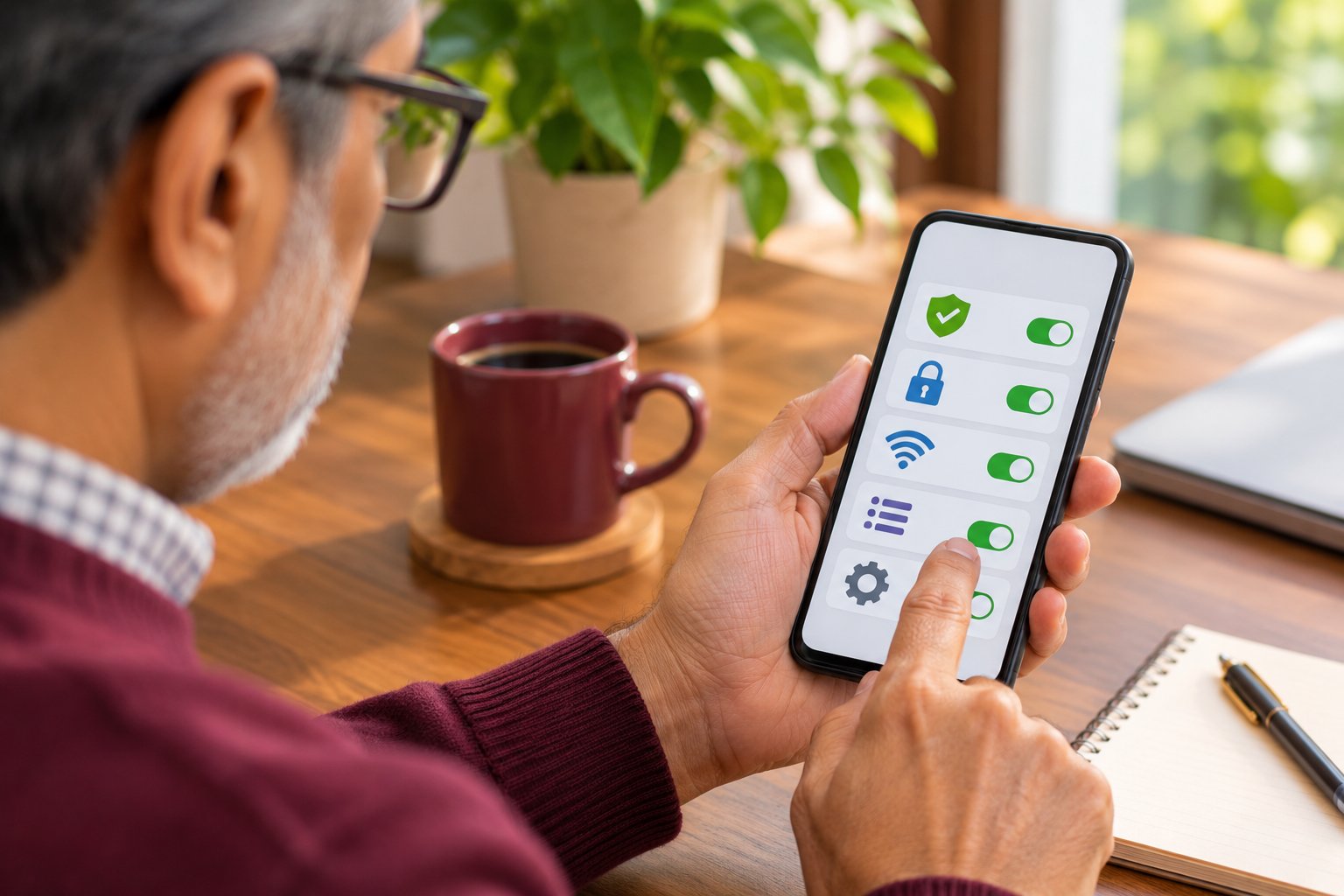
You can check an ad blocker without installing special testing software. The aim is to catch avoidable problems before the app becomes part of your daily connection. Work through these steps once when setting it up and again after a major change in permissions or filtering method.
Step 1: Confirm the Publisher and Installation Source
Start at the developer's official website and follow its App Store or Google Play link. Compare the publisher name on the store page with the website and privacy policy. Look for a support contact and recent product information, not just glowing reviews.
If a similarly named app asks you to download a file outside the store, do not assume it is the same product. Return to the official site and follow its store link again. Ad blockers often require elevated network-related permissions, so getting the correct publisher matters more than it would for a simple wallpaper app.
Step 2: Read the Privacy Policy for DNS Handling
Open the policy and search for DNS, logs, browsing, analytics, and third parties. Find out which organization handles the requests that are not blocked. If the app uses a resolver you have never heard of, open that resolver's own policy rather than stopping at the app developer's statement.
Pay attention to the difference between operational data and browsing data. Crash diagnostics and purchase records may be processed separately from DNS requests. The policy should say enough for you to understand each category and the reason it is needed.
A vague statement that the app "respects privacy" is not an answer to where domain lookups are sent.
Step 3: Match Every Permission to a Feature
On iPhone, check whether you are approving Safari rules, a website-reading extension, or a DNS configuration. Each does a different job. In Safari settings, review the extension's site access if a prompt asks to read or change webpage content.
On Android, inspect Settings > Apps > Permissions for the blocker, then inspect VPN in Settings if the app asks to create a VPN connection. A local DNS filter may legitimately use the VPN interface. It should not need contacts or microphone access to compare domains against blocklists.
If you cannot connect a permission to a feature, leave it off while you read the developer's explanation. Avoid granting broader access just to dismiss a setup prompt.
Step 4: Check Whether Encrypted DNS Is Really Part of the Setup
Find the resolver name and protocol in the provider's help pages or app settings. Look for DNS over HTTPS or DNS over TLS rather than relying on a generic label such as "secure connection." The policy should also identify who can process those encrypted lookups.
For Android Private DNS, copy the provider hostname only from the provider you selected. Save it through the system's Private DNS setting. If Android reports that it cannot connect to that provider, recheck the hostname and network instead of switching off other security settings at random.
A successful setup means DNS can be sent through the chosen configuration. It does not prove that every tracker domain is on the blocklist or that the resolver retains no logs.
Step 5: Test One Browser and Two Everyday Apps
Pick places you actually use: for example, a news page in Safari or Chrome, a weather app, and a casual game. Check that they open normally before enabling the blocker. Then turn filtering on and reopen the same pages on the same network.
Notice two things separately. First, are some ad areas or known unwanted requests gone? Second, can you still sign in, load images, follow links, and use the app's main functions? A blocked counter going up is not useful if your travel booking app cannot finish payment.
If a page changes very little, that is not by itself a safety failure. Some advertising is delivered from domains that cannot be cleanly blocked. If essential functionality breaks, pause the filter and reload. That comparison is more informative than repeatedly clearing app data or reinstalling the blocker.
Step 6: Check for VPN and DNS Conflicts
On Android, search Settings for VPN and look at the active connection. If a work VPN is running, check whether your ad blocker is inactive or whether starting it disconnects the work connection. Do not assume both filters are working because both apps show an enabled switch somewhere in their menus.
On iPhone, review installed DNS and VPN configurations. If filtering behaves differently on Wi-Fi and mobile data, compare the active connections and any network-specific restrictions. Hotel and airport Wi-Fi sign-in pages can also behave differently while DNS filtering is on.
Change one setting at a time, then test the same page again. Otherwise, you will not know which change solved the problem.
Step 7: Make Sure You Can Pause or Remove It
Before deciding to keep the blocker, find its pause control. Use it once and confirm that normal browsing returns. This matters when a payment redirect, school login, or public Wi-Fi sign-in page fails after filtering is enabled.
If you remove an iPhone app that installed a DNS configuration, check device settings for any configuration that remains. If you remove an Android app that used the VPN interface, confirm that the connection is no longer active. Do not leave an unfamiliar profile enabled simply because you no longer see the app icon.
A blocker should make your phone less frustrating, not leave you guessing about how to restore a normal connection.
Which Ad Blockers Are Safe? Clearing Up Common Myths
"The blocker that catches the most ads is the safest." A very aggressive blocklist can interfere with login services, payment checks, and app content. Blocking effectiveness and access to personal data are separate questions. Check both.
"The VPN symbol means everything goes through a distant server." On Android, a local filtering app may use the VPN interface without running a conventional remote VPN. Another app may route more traffic externally. The symbol cannot tell you which model is in use; the documentation should.
"Encrypted DNS makes browsing anonymous." Encryption protects DNS requests on the way to the resolver. That resolver still processes domain names, and websites still receive connections. If a privacy claim skips those details, read it more carefully.
"A free blocker must be selling my data." Business model alone does not settle the question. A free ad blocker with narrow permissions and clear DNS disclosures may be preferable to a paid product that requests broader access. Check the actual policy rather than guessing.
"Once ads are blocked, the phone is secure." Filtering can reduce connections to known advertising and tracking domains. It does not replace system updates, careful app installation, or spotting a fake sign-in page. An ad-free screen can still contain a phishing link.
"One visible ad means the blocker has failed." An ad embedded in a video stream or served from the same domain as useful content may not be separable with DNS filtering. A Safari content blocker may also affect only Safari. Judge the tool against the method and the places it claims to support.
FAQ
How do I know if an ad blocker app is safe?
Check the developer identity, official store listing, privacy policy, and requested permissions. Find out which company receives allowed DNS lookups and whether the app explains its filtering method. Test the blocker with a few familiar apps, then confirm that you can pause or remove it easily.
Do ad blockers collect my private browsing data?
Practices vary. Some blockers process rules locally, some collect diagnostic information, and some rely on outside DNS resolvers that process domain lookups. Read the app's policy and any third-party resolver policy before assuming that "no browsing history collected" means nobody handles DNS queries.
Is using a DNS ad blocker safer than a local VPN profile?
Not automatically. A DNS configuration can send lookups to an outside resolver, while an Android local VPN interface can filter DNS on the phone. Judge both by their permission scope, where requests are processed, and what is logged, rather than the label shown in Settings.
Why do some ad blocker apps require permission to read web content?
A Safari web extension may need page access to change or inspect webpage elements. A standard Safari content blocker works through rules that Safari applies and does not have the same broad page-reading model. If an extension asks to access every website, check which feature needs that permission before approving it.
When you have narrowed the choice to one blocker, set it up and revisit the pages and apps that led you to look for it. Keep it if the ads are less distracting, your essential apps still work, and you understand the DNS and permission settings. If any of those checks fail, you have a concrete reason to adjust the setup or choose a different method.