

You open a free game and get a full-screen ad after finishing a level. Your weather app has a banner covering part of the forecast. Then a shopping app sends another promotional notification.
If you want to reduce ads in mobile apps, start with encrypted DNS filtering for supported apps, browser content blocking for websites, and your phone's built-in privacy controls. Each handles a different problem, and none removes every advertisement.
DNS filtering can stop requests to known advertising domains. Browser blockers can hide certain ads and empty spaces on websites. Privacy settings help limit some advertising-related data collection, while notification controls stop unwanted promotional alerts.
This guide compares five practical methods based on where they work, how much setup they require, their privacy implications, and the problems they can cause. You'll also learn how to test whether a filter is helping without breaking the apps you use every day.
Understanding How Ads Load in Mobile Apps

A banner in a weather app and a full-screen ad in a mobile game may look similar, but they don't necessarily come from the same kind of server.
Some apps download advertising from separate ad networks. Others receive sponsored content through the same servers that deliver articles, videos, or shopping results.
That difference determines what an ad blocker can do.
For example, a weather app might contact one service for forecast information and another for advertising. Blocking the advertising domain may leave the forecast working normally.
A shopping app may receive ordinary products and sponsored listings through the same connection. Blocking that connection could prevent the entire product list from loading.
Before choosing a filtering method, it helps to understand what the app is requesting and why.
How Mobile Apps Request Advertising
Many free apps include advertising software that communicates with an external ad service.
When you open the app or reach a particular screen, the advertising software may request an available advertisement.
The app then displays the content.
Consider a free puzzle game.
You finish a level. The game contacts an advertising service and requests a full-screen video.
The service responds with an advertisement, and the game displays it before opening the next level.
If a DNS filter blocks the advertising service's domain, the video may fail to load.
But the game still controls the screen that was supposed to display it.
You might move directly to the next level. You might also see a blank screen, loading indicator, or unavailable-ad message.
Blocking an advertising request doesn't automatically remove the part of an app designed to display that advertisement.
This explains why some people notice fewer ads after enabling a filter but still encounter occasional pauses between game levels.
The filtering service can affect the network request. It doesn't control how the developer designed the app's interface.
The Main Types of Ads You'll Encounter
Different advertising formats respond differently to blocking.
Banner ads
These appear near the top or bottom of the screen.
You'll often find them in weather apps, calculators, casual games, and free utility apps.
When a banner loads from a recognized advertising domain, DNS filtering may prevent its content from appearing.
The app may still leave an empty rectangle where the banner belongs.
Interstitial ads
These occupy most or all of the screen.
A game might display one after completing a round. A news app might show one before opening an article.
Some interstitial ads come from separate advertising domains that DNS filtering can recognize.
Others use delivery systems that are harder to distinguish from ordinary app content.
Rewarded video ads
These let users watch advertising in exchange for a benefit.
For example, a game may offer an extra life, more coins, or another attempt after a completed video.
Blocking the video doesn't mean the game will provide the reward.
In fact, the game may disable that option when the advertising request fails.
Native advertisements
Native ads resemble the content surrounding them.
A shopping app may place sponsored products among ordinary search results. A news app may display a promoted story between regular articles.
These ads are often delivered through systems closely connected to the app's normal content.
DNS filtering may be unable to remove them without disrupting other features.
In-app promotions
These include upgrade offers, subscription prompts, seasonal promotions, and advertisements for another product from the same developer.
Some are built directly into the app.
They may not require a separate advertising request at all.
A DNS filter generally can't remove an ordinary promotional button that's already part of the interface.
Why Ads Appear More Often in Some Apps
Developers decide how frequently advertising opportunities appear.
One game may show a banner throughout play. Another may display a full-screen ad after every few levels.
A news app may include sponsored recommendations, while a shopping app may rely on promoted listings.
These choices reflect how the developer funds and organizes the app.
They also explain why two apps on the same phone can behave differently after you enable filtering.
Suppose a DNS filter reduces banners in a weather app but doesn't affect sponsored products in a shopping app.
The filter may be working normally.
The weather app's ads may come from recognizable third-party domains. The shopping app may deliver sponsored listings through its regular product system.
An ad blocker is only as effective as the advertising requests it can identify and safely block.
You don't need to know every technical detail behind an app.
You do need to recognize whether the unwanted promotion is likely to come from an external advertising service or the app itself.
Ads and Trackers Are Related but Different
An advertisement is something you see.
A tracker is technology used to collect, measure, or communicate information about activity.
Advertising platforms may use tracking for measurement, personalization, fraud prevention, or other purposes.
But not every ad relies on the same kind of tracking.
And not every tracker displays an ad.
For example, a free utility may contact an analytics service when you open a particular feature. That request may happen without any advertisement appearing.
A DNS filter that recognizes the analytics domain may prevent the connection.
However, the app might still send other information directly to its own servers.
This is why blocking tracking domains doesn't guarantee that an app stops collecting data.
On iPhone, App Tracking Transparency can restrict certain tracking activities covered by Apple's framework.
On Android, available advertising privacy controls let you manage some ways advertising-related information is used.
These settings can complement DNS filtering, but they don't perform the same job.
If your main complaint is constant full-screen advertisements, focus first on how those ads load.
If your concern is data collection, review app permissions, operating system privacy controls, and the DNS provider's privacy policy as separate decisions.
Why DNS Filtering Can Work Beyond a Browser
Browser content blockers operate inside supported browsers and web pages.
DNS filtering works at an earlier stage.
When a supported app requests a domain name, the configured DNS resolver can determine whether that domain should resolve.
If the domain matches an advertising or tracking blocklist, the resolver may refuse to provide a usable address.
This can affect eligible requests from installed games, utilities, and browsers.
That's useful because you don't need a separate browser extension for every app.
However, the app must use the DNS path being filtered.
Some apps use alternative resolution methods. VPN services may also change which resolver handles requests.
And if an advertisement arrives through the same domain as content you want, blocking that domain may interfere with the app.
DNS filtering is useful across supported applications, but coverage is not universal.
Methods to Reduce Ads on Android and iPhone
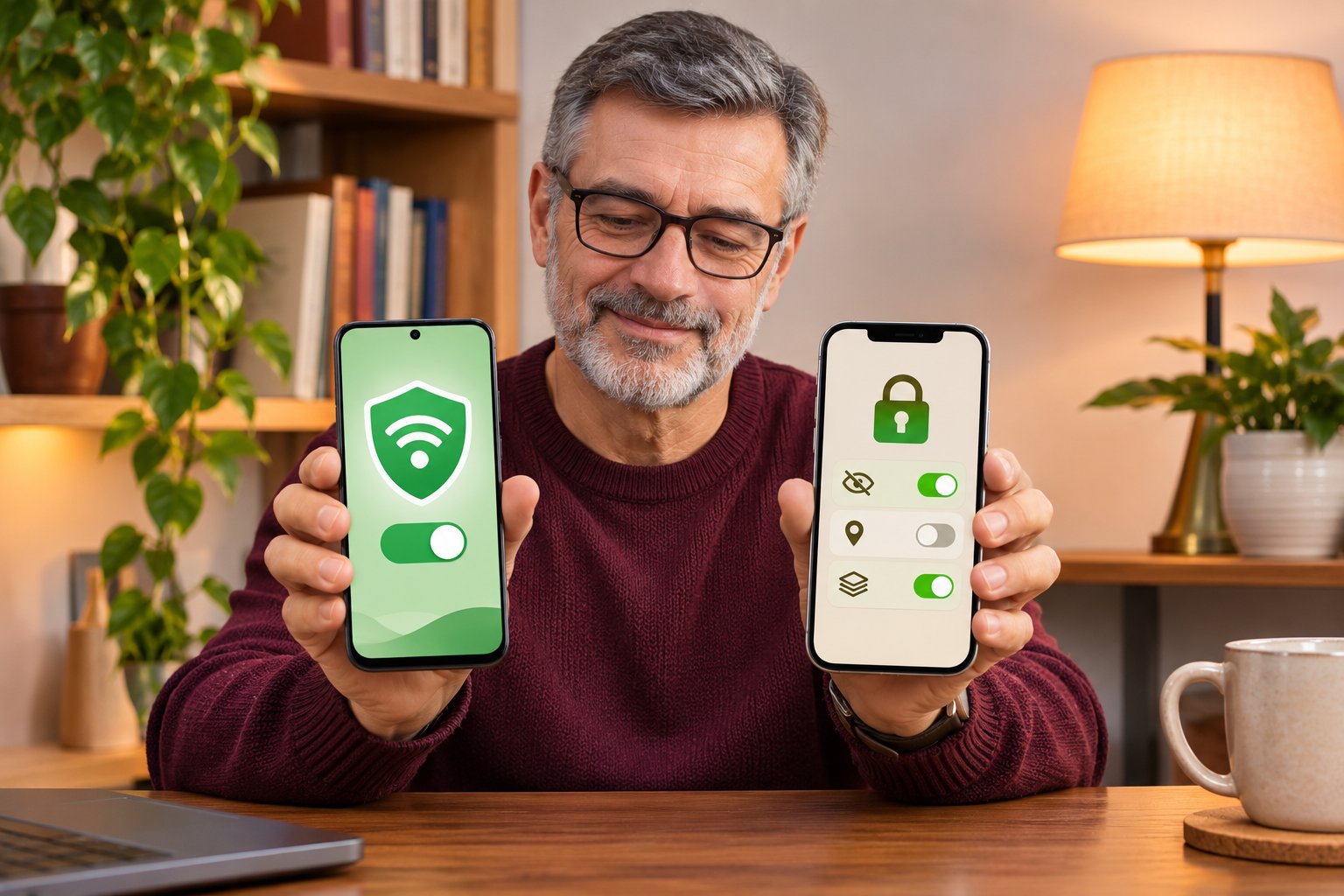
Start with the kind of interruption you want to remove.
If banners and full-screen ads appear across several installed apps, encrypted DNS filtering is worth trying.
If your main problem is advertising on websites, a browser content blocker may be more effective.
If promotions arrive as notifications, you can often fix that without installing anything.
The five methods below are compared by their intended use, strengths, setup effort, and limitations.
Using Encrypted DNS Domain Filtering
Best for: People who want fewer requests to known advertising and tracking domains across supported mobile apps and browsers.
Encrypted DNS filtering is a practical starting point when several apps display unwanted ads.
It doesn't require you to change settings inside every individual game or utility.
Instead, a filtering resolver checks the domains those apps request.
If the domain is on the applicable blocklist, the resolver can prevent the app from reaching it through that DNS lookup.
For example, a free game may request an interstitial ad from a separate advertising service.
If the service's domain is blocked, the ad may not load.
A weather app using a different advertising provider might respond differently.
That depends on whether the provider's domains are recognized and whether the app uses the filtered DNS connection.
What DNS over HTTPS does
DNS over HTTPS, or DoH, encrypts DNS queries between your device and the chosen resolver.
That protects those requests while they travel across the network.
But encryption alone doesn't remove ads.
A DNS service can use DoH without applying any advertising filters.
To reduce ads, you need a resolver that also blocks selected advertising domains.
These are separate functions:
-
DNS encryption protects queries in transit to the resolver.
-
DNS filtering decides which requested domains are allowed or blocked.
A service should explain both.
Setting up DNS filtering on iPhone
On a compatible iPhone, you can use an app that installs or manages an encrypted DNS configuration.
The general process is:
-
Install a reputable filtering application from its official App Store listing.
-
Open the application.
-
Choose the available advertising and tracker filtering mode.
-
Follow its DNS activation instructions.
-
Read and approve the iOS configuration request if you're comfortable with it.
-
Return to the app and check that the selected filtering mode is active.
You can review applicable configurations under Settings, General, then VPN & Device Management.
The exact controls vary by iOS version and the installation method.
If your iPhone already uses a VPN or another DNS configuration, identify it before enabling additional filtering.
Installing several network configurations without understanding which one is active can create confusing results.
Setting up DNS filtering on Android
Android 9 and later includes a built-in Private DNS feature.
On many Android phones, you can find it through:
-
Open Settings.
-
Select Network & internet.
-
Tap Private DNS.
-
Choose Private DNS provider hostname.
-
Enter the hostname supplied by a compatible filtering provider.
-
Tap Save.
Some manufacturers use different menu names.
If Private DNS isn't visible, use the search function inside Settings.
Android's built-in Private DNS setting uses DNS over TLS rather than DNS over HTTPS.
Both protocols can encrypt DNS traffic, but they are not identical.
You also need a provider that supports the relevant protocol and offers an advertising blocklist.
Entering an ordinary website address isn't enough.
Some Android filtering apps offer a simpler setup through the platform's VPN interface instead of requiring a manually entered Private DNS hostname.
Follow the chosen application's instructions and avoid configuring multiple filtering services unnecessarily.
Where Zero Ads fits
The Zero Ads app provides encrypted DNS filtering to help reduce ads and trackers in supported apps and browsers on iPhone and Android.
It offers simple controls for enabling or disabling filtering, which can be useful when you want to compare how an app behaves with filtering on and off.
For ordinary ad reduction, choose a filtering option intended for ads and trackers rather than assuming every security-focused DNS mode blocks advertising.
Strengths
-
Can reduce requests to known advertising domains beyond the browser.
-
May also block some tracker connections.
-
Doesn't require modifying each installed app.
-
Can work on supported apps over eligible WiFi and mobile data connections.
-
Can be disabled if an app stops working properly.
Limitations
-
Doesn't reliably remove ads delivered through the same domains as ordinary content.
-
May leave empty banner spaces or loading screens.
-
Some apps use alternative DNS methods.
-
VPN configurations can affect the active resolver.
-
Aggressive domain blocking can interfere with login, media, or game features.
What to check before choosing it
Look for a clear description of the filtering method.
Find out who operates the resolver, what types of domains are blocked, and how to disable the configuration.
The application should show whether filtering is active.
Also check the provider's data-handling policy.
Encrypted DNS protects queries in transit, but the selected resolver still processes the requests it receives.
A service with a very large blocklist isn't automatically the best option.
A filter that blocks your banking app or prevents a game from saving progress creates more work than it solves.
Adjusting Device Privacy Settings
Best for: People who want more control over advertising personalization and certain tracking activities.
Privacy controls are built into iPhone and Android.
They don't usually remove ads, but they're worth reviewing because they affect how some advertising-related information is handled.
On iPhone
Open Settings, then Privacy & Security, then Tracking.
You'll see the available controls for applications covered by Apple's App Tracking Transparency framework.
You can review the permissions granted to individual apps.
You can also turn off Allow Apps to Request to Track.
For example, you might decide that a casual game doesn't need permission to track your activity across other companies' apps and websites.
The game may still show advertising afterward.
That's expected.
The setting affects covered tracking permissions, not every advertising display.
On Android
Available controls vary by device and Android version.
On supported phones, open Settings, then Google, and look under All services for Ads or Ads privacy.
Where available, review controls such as:
-
Ad topics.
-
App-suggested ads.
-
Ad measurement.
These options help manage certain forms of advertising-related information.
They don't prevent developers from displaying ordinary banner ads or in-app promotions.
Check unnecessary app permissions
Privacy review also includes permissions unrelated to advertising.
For example, a simple calculator generally doesn't need access to your contacts to perform calculations.
A photo-editing app may legitimately need access to selected images.
A navigation app needs location information for many core functions.
Review permissions according to what the app actually does.
Don't disable everything automatically.
Strengths
-
Built into the phone.
-
No additional filtering app required.
-
Useful for controlling certain tracking permissions and advertising privacy settings.
-
Easy to review later.
-
Can be combined with DNS filtering.
Limitations
-
Usually doesn't remove visible ads.
-
Doesn't prevent every form of analytics or data collection.
-
Android options vary by device and version.
-
Apps can still display promotions that don't depend on tracking permission.
What to check before choosing it
If your complaint is that advertisements seem unusually personalized, start here.
If a game interrupts you after every level, privacy settings alone probably won't change that behavior.
Using Safari Content Blockers and Browser Extensions
Best for: People who encounter most of their ads on websites or browser-based games.
Browser content blockers can do something DNS filtering generally can't.
They may remove supported page elements as well as prevent selected resources from loading.
Suppose a news website places a large banner between two paragraphs.
DNS filtering may block the advertising request but leave a blank space.
A suitable Safari content blocker may also hide the reserved page element.
That can make articles easier to read.
How to enable a Safari content blocker on iPhone
-
Install a compatible content blocker from the App Store.
-
Open Settings.
-
Select Apps, then Safari on newer iOS versions.
-
Tap Extensions.
-
Find the installed content blocker.
-
Enable the appropriate controls.
-
Review permissions for any Safari profiles you use.
On older iOS versions, Safari may appear directly in Settings.
After enabling the extension, open a familiar website.
Check whether supported banners and page advertising elements are reduced.
Browser filtering on Android
Android browsers differ in extension support.
Some allow compatible content-blocking extensions. Others provide built-in privacy controls but don't support the same extensions.
Open the browser's settings and look for Extensions, Privacy, or Site settings.
Check its official support instructions before installing anything.
Don't assume a desktop extension will work on your Android browser.
Strengths
-
Useful for website advertising.
-
Can hide certain page elements, not just block requests.
-
May make supported articles and web pages easier to read.
-
Often simple to enable or disable.
Limitations
-
Safari blockers don't automatically affect standalone iPhone games.
-
Android extension support varies by browser.
-
Some sites deliver ads through shared content systems.
-
Aggressive rules can interfere with login forms, embedded videos, or page navigation.
What to check before choosing it
Think about where the ads appear.
If you mostly read news and browse websites in Safari, start with a content blocker.
If advertisements interrupt installed games or utilities, browser filtering may offer little benefit.
Using In-App Advertising Controls and Official Ad-Removal Options
Best for: People who are especially bothered by ads in one frequently used app.
Sometimes the developer offers a direct solution.
A game may include an official purchase to remove certain advertisements.
A news app may offer a subscription with reduced advertising.
A utility may let you turn off some promotional messages inside its settings.
Start by opening the affected app.
Look for sections such as Settings, Privacy, Advertising, Purchases, or Remove Ads.
The names vary by developer.
Read the description before paying
An ad-removal option doesn't always cover every format.
For example, a game may remove forced full-screen ads but continue offering optional rewarded videos.
Another may remove banners but leave its own upgrade promotions in place.
Check exactly what the developer promises.
Also confirm whether the purchase applies to your platform and account.
An ad-removal purchase for one app doesn't automatically affect other apps.
Strengths
-
Supported directly by the developer.
-
May remove ads that DNS filtering cannot distinguish from game content.
-
Usually doesn't require changing phone network settings.
-
Useful when one app accounts for most of your frustration.
Limitations
-
Not every app offers an ad-removal option.
-
Some purchases cover only certain advertising formats.
-
Costs can add up across multiple apps.
-
Developer promotions may remain.
What to check before choosing it
If you use one game daily and its ads aren't affected by DNS filtering, check its official options.
If the problem spans several unrelated apps, domain filtering may be a more practical first step.
Avoid modified apps or unofficial copies that promise premium features without paying. They can create security and account risks, and they aren't necessary for ordinary ad reduction.
Managing Promotional Notifications and App Alerts
Best for: People whose phones keep lighting up with shopping offers, game promotions, or unwanted app reminders.
Not every unwanted advertisement appears inside an app.
Some arrive as push notifications.
A shopping app may send repeated sale alerts. A game may announce limited-time rewards. A news app may send promotional recommendations.
DNS filtering isn't the right tool for controlling these notifications.
Use the phone's notification settings.
On iPhone
-
Open Settings.
-
Tap Notifications.
-
Select the app.
-
Review Allow Notifications and the available controls.
-
Disable unwanted alerts or adjust the options the app provides.
Some applications also offer separate notification categories inside their own settings.
For example, you may want delivery updates from a shopping app but not promotional offers.
Check whether the app lets you separate them.
On Android
-
Open Settings.
-
Select Notifications.
-
Tap App notifications.
-
Find the application.
-
Disable notifications or adjust available categories.
Some Android apps provide separate controls for orders, messages, promotions, and recommendations.
Use those categories where available.
Strengths
-
Uses built-in phone settings.
-
Can immediately reduce unwanted interruptions.
-
Doesn't require DNS or VPN configuration.
-
May allow important alerts to remain enabled.
Limitations
-
Doesn't remove ads shown while using the app.
-
Some developers don't separate useful and promotional notifications.
-
Turning off every notification can hide information you actually need.
What to check before choosing it
If a game bothers you mainly by sending promotional alerts throughout the day, start here.
You may not need an ad blocker to solve that problem.
How to Reduce Ads in Mobile Apps Without Breaking Anything
An ad blocker is only useful if the apps you rely on continue working.
You don't need specialized testing software to evaluate the result.
Use a familiar app, change one setting, and compare its behavior.
Start With the App That Bothers You Most
Choose one app where ads regularly interrupt you.
A familiar game or news app is a good starting point because you already know what its advertising looks like.
Open the app before changing anything.
Notice where the ad appears.
Does a banner remain at the bottom of the screen?
Does a full-screen advertisement open after a level?
Does a sponsored product appear in search results?
Or does the app send unwanted notifications when closed?
The answer determines which method to try.
For example, if a shopping app sends promotional alerts but doesn't display many in-app ads, notification settings may be the most useful fix.
If a game loads full-screen ads from an external advertising network, DNS filtering may help.
Change One Setting at a Time
Avoid installing several filtering apps at once.
Start with the method that matches the problem.
For advertisements inside supported apps, try encrypted DNS filtering.
For website advertising, try a browser content blocker.
For tracking permissions, use your phone's privacy settings.
For promotional alerts, adjust notifications.
Then check the result before changing anything else.
If you activate multiple filters simultaneously and an app stops loading, you'll have a harder time identifying the cause.
Keeping the setup simple makes troubleshooting much easier.
Test the Same Activity Again
Return to the app and repeat the action that normally triggers an ad.
For example, finish a few levels in the same game.
Or revisit the section of a news app where a banner normally appears.
Look for changes.
You might notice that:
-
The ad no longer loads.
-
A blank space remains.
-
Some ads disappear while others continue.
-
Nothing changes.
-
A game or app feature stops working.
Avoid treating one attempt as definitive.
Ad availability can change naturally based on the advertising service and app conditions.
If necessary, compare the same activity several times under similar conditions.
You're looking for a useful change in normal behavior, not proof that every possible ad has been blocked.
Confirm Essential Features Still Work
After enabling a filter, check the functions you actually need.
For a game:
-
Can you start a new level?
-
Does saved progress load?
-
Can you sign in?
-
Do online features still work?
For a shopping app:
-
Do product pages open?
-
Can you search for items?
-
Does checkout work?
For a weather app:
-
Does the forecast refresh?
-
Can it retrieve updated conditions?
If a function fails, temporarily disable the filter and try again.
If the feature works with filtering off but fails when filtering is active, a blocked domain may be involved.
Some filtering services provide exceptions or less restrictive modes.
Review those options if available.
Otherwise, it may be better to leave filtering disabled for the affected activity.
Blocking more requests isn't useful if it prevents normal app functions.
Compare WiFi and Mobile Data
Test filtering using your usual WiFi network.
Then check mobile data if you regularly use it.
The results may differ.
A system-level DNS configuration is intended to handle eligible requests across supported connections, but VPN settings, managed networks, and app behavior can affect coverage.
On Android, a VPN-based filtering app may interact with another service that needs the same VPN interface.
On iPhone, a separate VPN or DNS configuration may change which resolver handles requests.
If ads return after switching networks, check the active configuration before changing the filter's rules.
The issue may be which resolver is being used rather than the quality of the blocklist.
Keep a Simple Way to Turn Filtering Off
Before installing a network filter, find out how to disable it.
An app-managed service should provide a clear control.
If you manually configured Android Private DNS, you can return to its settings and change the selected mode.
On iPhone, use the filtering app's controls or the applicable configuration settings.
You shouldn't need to reset your phone to reverse a DNS change.
Easy disabling is a useful feature, not an afterthought.
If a banking app suddenly reports a connection error, you want to be able to compare its behavior with filtering off without affecting unrelated settings.
Setting Realistic Expectations for Mobile Ad Blocking
A correctly configured ad blocker can still leave advertisements visible.
That doesn't automatically mean the service is failing.
Coverage depends on how the app delivers advertising, which domains the filter recognizes, and whether those requests use the configured resolver.
The goal is fewer unwanted interruptions without damaging normal functionality.
Why Some In-App Advertisements Remain
DNS filtering blocks or allows domain lookups.
It doesn't inspect the finished app screen and identify every promotional image.
Suppose a shopping app receives ordinary products and sponsored listings from the same domain.
A DNS filter may not be able to block only the sponsored listings.
Blocking that domain could also prevent ordinary products from loading.
The same problem can occur in news apps, social platforms, and games.
Some promotions are also part of the installed application itself.
They may not require a separate network request when displayed.
In those situations, ordinary DNS filtering has little control.
This is why a filter may reduce third-party banners while leaving built-in upgrade offers untouched.
Why Rewarded Videos Are Different
Rewarded videos are connected to game rewards.
A player watches an advertisement to receive extra coins, another life, or an additional attempt.
If a filter blocks the video, the game may not provide the reward.
Some rewarded advertisements may continue playing because their delivery domains aren't blocked.
Consider a game where you regularly watch a short video after losing a level.
If filtering makes that video unavailable, you may also lose the option to continue through that reward.
That might make the game less convenient.
If you use rewarded ads frequently, decide whether you want that feature filtered.
An ad blocker doesn't change the developer's reward rules.
Why Video Platform Ads Are Harder to Filter
Some video and social platforms deliver advertising through the same infrastructure used for regular content.
A DNS filter may be unable to distinguish the advertising connection from the video you're trying to watch.
Blocking the shared domain could stop both.
This is why DNS filtering shouldn't be advertised as a guaranteed way to remove every YouTube or social video ad.
The same limitation applies to mobile apps that combine advertising and ordinary content delivery.
A filter can reduce certain requests without providing universal ad removal.
Why Empty Ad Spaces Can Remain
A blocked banner doesn't always disappear cleanly.
The app may still reserve the original advertising area.
For example, a free weather app might keep a rectangle beneath the forecast even when the advertisement fails to load.
That doesn't necessarily mean the filter failed.
It may have blocked the advertising content while the app continued displaying its normal layout.
A browser content blocker may have more control over supported page elements.
But a browser extension usually can't redesign the interface of an unrelated installed app.
If the empty space doesn't affect usability, you may consider the result acceptable.
If it creates long pauses or broken screens, compare the app with filtering disabled.
What Encrypted DNS Protects and What It Doesn't
Encrypted DNS protects DNS requests while they travel to the selected resolver.
Filtering can also prevent requests to recognized tracking domains when those requests use the filtered DNS path.
Neither guarantees complete privacy.
The selected DNS provider processes the queries it receives.
Apps may still communicate with their own servers.
Websites can still receive information through ordinary connections.
And embedded analytics or first-party tracking may remain outside the filter's control.
Review the provider's privacy practices before using it.
Look for explanations of how queries are processed and what information may be retained.
Don't assume that a service described as private automatically provides anonymity or prevents all tracking.
Why More Aggressive Filtering Isn't Always Better
A larger blocklist may prevent access to more domains.
That isn't always an improvement.
Some domains support several app functions.
Blocking one could prevent an account from signing in, stop an embedded video, or interfere with a game feature.
A strict filter may also block domains that aren't primarily advertising services.
When comparing filtering options, pay attention to compatibility.
A practical setup should leave important functions working.
If aggressive filtering creates repeated errors, consider a less restrictive configuration rather than adding more tools.
The useful measure is how much the filter improves everyday use, not how many requests it claims to block.
Summary and Recommended Next Steps
The right approach depends on where ads interrupt you.
You may need only one of the methods discussed here.
Someone who mainly uses Safari has different requirements from someone who spends most of their time in free mobile games.
The comparison below focuses on what each option actually controls.
Comparison of Mobile Ad-Reduction Methods
| Method | Best for | Main strength | Main limitation |
|---|---|---|---|
| Encrypted DNS domain filtering | Supported apps, games, and browsers | Can reduce requests to known advertising domains beyond the browser | Doesn't reliably remove shared-domain or embedded ads |
| Device privacy settings | Certain tracking and advertising personalization controls | Built into iPhone and Android | Usually doesn't remove visible ads |
| Safari and browser content blockers | Websites and browser-based games | Can block resources and hide supported page elements | Doesn't automatically affect installed mobile apps |
| In-app controls and official ad-removal options | One frequently used app | May directly remove developer-specified advertising formats | Coverage and costs vary by app |
| Notification controls | Promotional push notifications | Reduces unwanted alerts without network changes | Doesn't remove advertising displayed inside apps |
How to Choose Based on Your Situation
If ads appear across several installed apps
Start with encrypted DNS filtering.
Choose a service that explicitly filters advertising domains.
Confirm that the selected configuration is active, then test a few apps you regularly use.
Expect results to vary.
If most advertisements appear in Safari
Try a supported Safari content blocker.
Enable its extension and check whether banners and page advertising elements are reduced.
If you also want domain-level filtering across eligible apps, consider adding encrypted DNS.
If you use Android and want fewer in-app ads
Review a suitable filtering Private DNS provider or an app-managed encrypted DNS solution.
Remember that Android's built-in Private DNS setting uses DNS over TLS, while some applications use DNS over HTTPS.
The encryption protocol doesn't determine which ads are blocked.
The filtering provider's domain rules do.
If advertisements seem unusually personalized
Review privacy settings before installing another blocker.
On iPhone, check App Tracking Transparency.
On Android, review the available advertising privacy controls.
These may limit certain tracking activities without reducing the number of ads.
If one game causes most of the frustration
Test DNS filtering.
If the ads remain, check whether the developer offers an official ad-removal option.
Read what it covers before purchasing.
If promotional notifications are the problem
Open the phone's notification settings.
Disable promotional categories where available while keeping useful alerts enabled.
You don't need DNS filtering to manage ordinary push notifications.
If privacy is your main concern
Review app permissions and the filtering provider's privacy practices.
Avoid installing unknown configuration profiles or overlapping network tools.
Choose a setup whose purpose and data handling you understand.
What to Do When Ads Still Appear
If filtering is enabled but you continue seeing ads, work through these checks.
1. Confirm the configuration is active.
Open the filtering app or appropriate network settings.
Check that the intended resolver is being used.
2. Review the selected mode.
Make sure it includes advertising domains.
A security-only DNS mode may focus on malicious websites rather than ordinary ads.
3. Identify the remaining advertisement.
Is it a third-party banner, full-screen video, sponsored listing, or in-app upgrade offer?
This helps determine whether domain filtering can reasonably affect it.
4. Check for VPN or DNS conflicts.
Another network service may be handling DNS requests.
Avoid installing additional configurations before identifying the active one.
5. Compare filtering on and off.
Repeat the same app activity under similar conditions.
Look for changes to both advertising and normal functionality.
6. Check the app's own settings.
Some promotions may only be controlled through developer-supported options.
If a particular app continues showing ads while filtering is otherwise working, you may have reached the method's coverage limit.
There may be no useful reason to keep changing DNS profiles.
A Practical Setup for Everyday Use
For most people, a straightforward combination is enough.
Use one reputable encrypted DNS filtering service for supported advertising and tracking domains.
Add a browser content blocker if websites are a major source of interruptions.
Review iPhone or Android privacy settings according to your preferences.
Turn off promotional notifications from apps that don't need to contact you throughout the day.
Then test the result.
Your weather app should still update its forecast.
Your shopping app should still open product pages and complete checkout.
Your game should still save progress and connect to its required services.
If those features work and you see fewer interruptions, the setup is doing something useful.
FAQ
Why are there so many ads in mobile apps?
Many free apps use advertising to support development and operating costs. Developers choose where banners, full-screen ads, rewarded videos, and sponsored content appear, so the frequency varies widely between apps. A game that displays an ad after every level may feel much more intrusive than a weather app with one small banner.
How does encrypted DNS reduce ads in mobile apps?
Encrypted DNS sends domain lookups securely to a selected resolver. When that resolver also uses advertising and tracker blocklists, it can prevent connections to recognized ad domains in supported apps. It can't reliably remove promotions delivered through shared content domains or advertising built directly into an application's interface.
Does ad blocking work in every app?
No. Results depend on the app, advertising delivery method, filtering rules, and network configuration. DNS filtering can reduce some third-party banners and interstitial ads, while embedded promotions, rewarded videos, and shared-domain advertising may remain. Browser content blockers also have different coverage from system-level DNS filtering.
Start with the app that interrupts you most. If its ads come from recognized advertising domains, encrypted DNS filtering may help. If the problem is website advertising, try browser content blocking. For unwanted notifications or tracking permissions, use the controls already available on your phone.
Change one setting, test the result, and make sure the app still works. Fewer interruptions and a reliable connection are a better outcome than aggressive blocking that breaks features you actually need.